
Convert Text to HTML Link | URL to HTML Hyperlink
Convert Multiple URLs into Hyperlinks
Type/Paste your contents and set your link properties to convert in Convert Multiple URLs HyperlinksText to HTML Link or URL to HTML Hyperlink Generator Tool
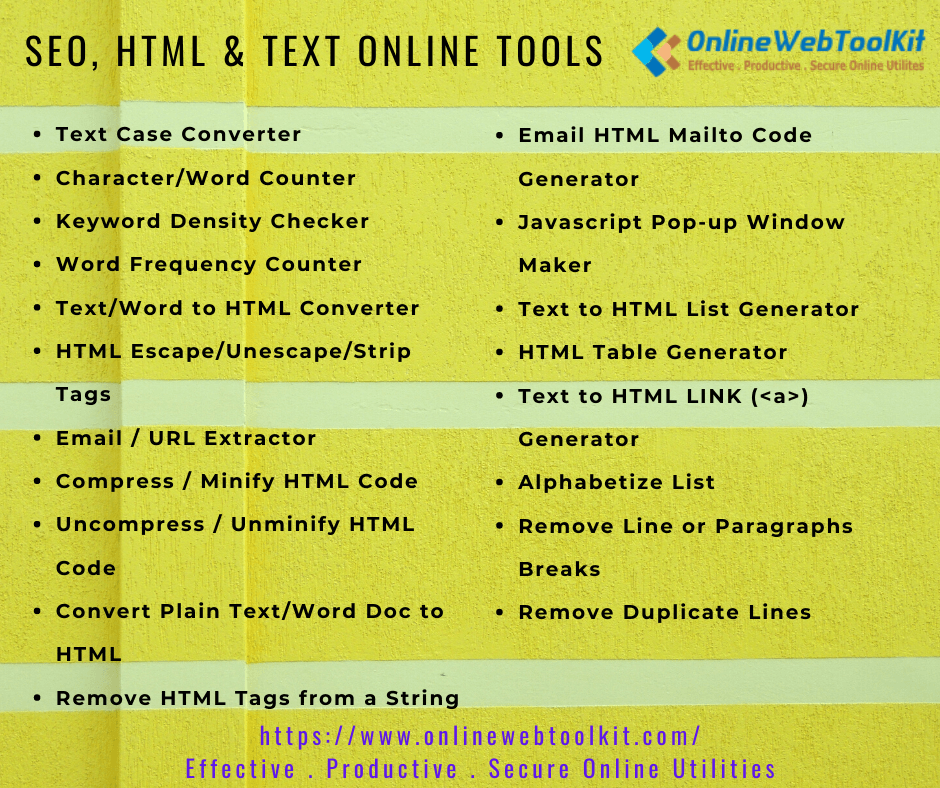
If you have a text list of URLs, you can automatically convert those URLs to HTML hyperlinks using this online tool.
HTML Links or HTML <a> Tag
HTML links are elements that allow you to navigate between different pages on the web, as well as to other resources, such as images, documents, and other media files. The link element is represented by the <a> tag in HTML.
HTML links are clickable elements on a web page that take the user to another web page, a specific location within the same web page, or even to a different section within the same web page. They are a fundamental part of the web and allow users to navigate between different websites and pages.
To create an HTML link, you need to use the anchor tag, which is written as <a>. The basic structure of an HTML link is as follows:
<a href="URL">Link text</a>
Here, the "href" attribute is used to specify the destination URL, which is the web page or file that the link points to. The "Link text" is the text that the user clicks on to follow the link.
For example, the following HTML code creates a link to the OnlineWebToolKit homepage:
<a href="https://www.onlinewebtoolkit.org/">Visit OnlineWebToolKit</a>
When the user clicks on the link, it will take them to the OnlineWebToolKit homepage.
You can also use relative URLs to create links to other pages within your own website. For example:
<a href="about.html">About Us</a>
In this example, the "about.html" file is located in the same directory as the current web page. When the user clicks on the link, it will take them to the "about.html" page.
You can also use anchor tags to create links to specific locations within a web page. This is called an anchor link. For example:
<a href="#section1">Jump to Section 1</a>...<h2 id="section1">Section 1</h2>
In this example, the link text "Jump to Section 1" will take the user to the section with the "id" attribute of "section1" within the same web page.
This creates a link that opens the website at "https://www.example.com" in a new window when you click on it.
HTML Links - The target Attribute
By default, the linked page will be displayed in the current browser window. To change this, you must specify another target for the link.
The target attribute specifies where to open the linked document.
The target attribute can have one of the following values:
- _self - Default. Opens the document in the same window/tab as it was clicked
- _blank - Opens the document in a new window or tab
- _parent - Opens the document in the parent frame
- _top - Opens the document in the full body of the window
The href attribute is used to specify the URL that the link should point to. You can also add other attributes to customize the link's behavior, such as target, which determines how the link should be opened (in a new window, for example). Here is an example:
<a href="https://www.onlinewebtoolkit.com" target="_blank">Click here</a>
HTML Links - Use an Image as a Link
To use an image as a link, just put the <img> tag inside the <a> tag:
Example <a href="index.htm"> <img src="image1.jpg" alt="OnlineWebToolKit Tools" style="width:60px;height:60px;"> </a>
Link to an Email Address
Use mailto: inside the href attribute to create a link that opens the user's email program (to let them send a new email): Example
<a href="mailto:[email protected]">Send email</a>
Button as a Link
To use an HTML button as a link, you have to add some JavaScript code.
JavaScript allows you to specify what happens at certain events, such as a click of a button: Example
<button onclick="document.location='index.php'">OnlineWebToolKit Tools</button>
How To Use This Online URL to HTML Hyperlink Generator Tool?
The URL to HTML Hyperlink Generator Tool we offer features a user-friendly interface that makes it easy for anyone to use, regardless of their level of expertise. Whether you're a seasoned professional or just starting out, you won't have to worry about complicated rules for viewing HTML online with this tool. The straightforward steps outlined below will help you view HTML using our service.
- Browse or open HTML Hyperlink Generator - https://www.onlinewebtoolkit.com/text-to-html-link
- Upload or Paste your content in the input box provided on this tool. The tool allows its users to copy-paste code, and upload a TEXT and HTML file.
- After uploading or pasting content text, Choose HTML Link Properties to generate the HTML Link.
- Select "Input Text Separator" according to your content.
- You can make an HTML Link Format based on following options
- No Formatting
- Wrap Each Link in a Paragraph (<p>) Tag
- Wrap All the Links in a <p> with a <br /> After Each Link
- Wrap Each Link in a <div> Tag
- All the Links in a Bullet (<ul> - <li>) List
- All the Links in a Numbered (<ol> - <li>) List
- Choose your HTML Link target as follows
- No Target
- _self - Default. Opens the document in the same window/tab as it was clicked
- _blank - Opens the document in a new window or tab
- _parent - Opens the document in the parent frame
- _top - Opens the document in the full body of the window
- The next step is to click the "Convert URL to HTML Hyperlinks" button.
- As this button is pressed, the results are generated and displayed instantaneously.
- Once you have generated the HTML code, you have a few options for copying and pasting it into your document. One option is to click on the "Copy" button, which will immediately copy the code to your clipboard. Another option is to select all the converted text using your mouse or keyboard (e.g., "Control-A" on Windows or "Command-A" on Mac) and then press "Control-C" to copy it and "Control-V" to paste it back into your document.
- Alternatively, you can download generated HTML code to a text file by simply clicking on the "Download" button
Useful Features of Our Online Text to HTML Link Code Generator
The Online Text to HTML Link Code Generator on our website comes equipped with exceptional features, making it the best online tool for generate HTML List codes. The most notable features of our online utility are listed below.
Free and Simple to Use
Using this tool is completely free, and it's simple to use with just a few straightforward instructions.
Compatibility
As a cloud-based tool, it's compatible with all operating systems, including iOS, Android, Windows, and Mac OS, so you can access and use it to view HTML files no matter what device you're using.
No Plugin Installation Needed
You can access this tool through the web browser of your device without having to install any plugins. This HTML viewer operates without the need for any plugins, making it convenient to use.
Speedy and Secure
It quickly displays results, and it's a secure online tool that doesn't save any data entered or uploaded by users in its databases.
Global Accessibility
You can access this tool from anywhere in the world as long as your device is connected to the internet.
Privacy Is Guaranteed
OnlineWebToolkit offers a variety of online tools, including an Text to HTML Link Code Generator, and places a high priority on protecting the privacy of its users' data. Many people are concerned about the security of their confidential information when using online tools due to the increase in online scams. However, our website provides a secure tool that keeps your information safe from hackers and will not share it with any third parties. The HTML code you upload to our tool is stored only on your device (in the browser) during the formatting process. Once the results are generated and displayed, or when you refresh or close your browser, the data is deleted from our site.
<The Complete HTML Guide>
Every element, attribute, symbol and API that makes up HyperText Markup Language — explained in plain language, with runnable examples and a printable cheat sheet at the end.
01<what-is-html>
HTML, short for HyperText Markup Language, is the language used to structure content on the web. Every page you have ever opened in a browser — a news article, a login form, a video player, an online calculator — starts life as an HTML document. It is not a programming language in the traditional sense; it does not calculate, loop, or make decisions. Instead, HTML describes the meaning and structure of content, telling the browser "this is a heading," "this is a paragraph," "this is a list," or "this is a button."
The name itself explains the concept. "HyperText" refers to text that contains links to other text — the defining feature that turned a collection of documents into a connected web. "Markup Language" refers to the way HTML annotates plain text with tags that describe its role. When you write <h1>Welcome</h1>, you are marking up the word "Welcome" as a top-level heading, and the browser knows to render it larger and bolder than surrounding text by default.
HTML was first proposed by Tim Berners-Lee in 1990 while working at CERN, as a way to share linked scientific documents between researchers. What began as a handful of tags for headings, paragraphs, and hyperlinks has grown into HTML5, the current living standard maintained by the WHATWG (Web Hypertext Application Technology Working Group) in cooperation with the W3C. Modern HTML does far more than format text — it defines forms, embeds audio and video natively, exposes device sensors through JavaScript APIs, and provides the semantic backbone that search engines and screen readers rely on to understand a page.
Why HTML Matters Even If You Use a Website Builder
Even if you build sites with a drag-and-drop platform or a JavaScript framework like React or Vue, the final output that reaches the browser is still HTML. Understanding it helps you debug layout issues, improve search rankings through correct semantic structure, fix accessibility problems, and communicate clearly with designers and developers. It is, in short, the one skill that underlies everything else on the front end of the web.
HTML, CSS, and JavaScript: The Three Pillars
HTML rarely works alone. It is one of three core web technologies, each with a distinct job:
- HTML provides structure and meaning — the skeleton of a page.
- CSS (Cascading Style Sheets) provides presentation — colors, spacing, fonts, and layout.
- JavaScript provides behavior — interactivity, data handling, and dynamic updates.
Separating these concerns keeps code maintainable: a well-structured HTML document should remain meaningful even with no CSS or JavaScript applied at all, which is also exactly what search engine crawlers and screen readers experience.
02<html-basics>
Every HTML document follows the same underlying skeleton. Once you understand this skeleton, every page you will ever open in "view source" makes sense — from a personal blog to a full e-commerce storefront.
<!-- The minimum valid HTML5 document --><!DOCTYPE html><htmllang="en"><head><metacharset="UTF-8"><metaname="viewport"content="width=device-width, initial-scale=1.0"><title>My First Page</title></head><body><h1>Hello, World</h1><p>This is my very first paragraph.</p></body></html>• The Doctype Declaration
<!DOCTYPE html> is not an HTML tag — it is an instruction to the browser that tells it which rendering rules to use. In HTML5, the doctype was deliberately simplified to this one short line, replacing the long, hard-to-remember doctype strings required by HTML 4.01 and XHTML. Omitting the doctype pushes older browsers into "quirks mode," where box sizing, margins, and form elements can render inconsistently, so it should appear as the very first line of every document.
• The Root Element
The <html> element wraps the entire document and should always carry a lang attribute (for example lang="en" or lang="bn"). This single attribute tells screen readers which pronunciation rules to use and helps search engines serve the right language to the right audience — a small detail with an outsized accessibility and SEO impact.
• The Head Section
The <head> element holds metadata that never appears directly on the page: the document title shown in the browser tab, character encoding, the responsive viewport declaration, linked stylesheets, favicon references, and SEO meta tags. Nothing inside <head> is visible content by default; it configures how the page behaves and how it is described to search engines and social platforms.
• The Body Section
The <body> element contains everything a visitor actually sees and interacts with — headings, paragraphs, images, links, forms, and scripts that manipulate the visible page. A document can only have one <body>, and it always follows the <head>.
Anatomy of an HTML Element
Most HTML elements consist of an opening tag, content, and a closing tag, though some — called void elements — never wrap content and never need a closing tag at all.
<!-- Standard element --><pclass="intro">Some text here</p><!-- Void element: no closing tag, no content --><imgsrc="photo.jpg"alt="A mountain lake"><br><hr><inputtype="text">Void elements in HTML5 include <br>, <hr>, <img>, <input>, <link>, <meta>, <area>, <base>, <col>, <embed>, <source>, <track>, and <wbr>. You may see them written with a trailing slash, like <br />, a leftover convention from XHTML — HTML5 accepts both, but the trailing slash has no functional effect in standard HTML parsing.
Comments
HTML comments are written as <!-- comment text -->. They are never rendered on the page but remain visible in the page source, so they should never contain sensitive information such as API keys, internal notes, or credentials.
Case Sensitivity and Whitespace
HTML tag and attribute names are not case-sensitive — <DIV> and <div> behave identically — but the accepted style convention is lowercase, which is also required by stricter formats like XHTML. Multiple spaces, tabs, and line breaks inside your source code collapse into a single space when rendered, which is why HTML relies on tags such as <br> and CSS for controlling whitespace and line breaks rather than pressing Enter in the source file.
.html extension and double-click it to open it in your default browser. 03<elements-attributes>
HTML5 defines well over 100 elements. Rather than memorizing an alphabetical dictionary, it helps to group them by the job they do. Below is a practical reference organized by category, followed by a breakdown of global attributes that can be applied to almost any element.
Document Metadata Elements
| Element | Purpose | Example |
|---|---|---|
<head> | Container for metadata | <head>...</head> |
<title> | Browser tab / SEO title | <title>My Page</title> |
<meta> | Character set, description, viewport | <meta charset="UTF-8"> |
<link> | Links external resources (CSS, favicon) | <link rel="stylesheet" href="style.css"> |
<style> | Embeds CSS directly in the page | <style>body{margin:0}</style> |
<base> | Sets a base URL for all relative links | <base href="https://example.com/"> |
Sectioning & Structural Elements
| Element | Purpose | Example |
|---|---|---|
<header> | Intro/navigation area of a page or section | <header><h1>Site</h1></header> |
<nav> | Group of navigation links | <nav><a href="/">Home</a></nav> |
<main> | The page's primary content (one per page) | <main>...</main> |
<section> | A thematic grouping of content | <section><h2>Pricing</h2></section> |
<article> | Self-contained, reusable content | <article><h2>Post Title</h2></article> |
<aside> | Tangential content, sidebars | <aside>Related links</aside> |
<footer> | Closing/meta info for a page or section | <footer>© 2026</footer> |
<div> | Generic, non-semantic block container | <div class="card">...</div> |
Text Content Elements
| Element | Purpose | Example |
|---|---|---|
<h1>–<h6> | Headings, level 1 (most important) to 6 | <h2>Subheading</h2> |
<p> | Paragraph | <p>Body text.</p> |
<blockquote> | Long quotation, often indented | <blockquote cite="url">Quote</blockquote> |
<hr> | Thematic break (horizontal rule) | <hr> |
<pre> | Preformatted text, preserves whitespace | <pre> code </pre> |
<figure> / <figcaption> | Self-contained media with a caption | <figure><img src="x.jpg"><figcaption>Caption</figcaption></figure> |
Inline Text Semantics
| Element | Purpose | Example |
|---|---|---|
<a> | Hyperlink | <a href="/about">About</a> |
<strong> | Strong importance (bold, semantic) | <strong>Warning</strong> |
<em> | Stressed emphasis (italic, semantic) | <em>really</em> |
<span> | Generic, non-semantic inline container | <span class="highlight">text</span> |
<br> | Line break | Line one<br>Line two |
<small> | Fine print / side comments | <small>Terms apply</small> |
<mark> | Highlighted text | <mark>important</mark> |
<code> | Inline code snippet | <code>var x = 1;</code> |
<abbr> | Abbreviation with a tooltip title | <abbr title="HyperText Markup Language">HTML</abbr> |
<sub> / <sup> | Subscript / superscript | H<sub>2</sub>O |
<time> | Machine-readable date/time | <time datetime="2026-07-14">July 14</time> |
Embedded Content & Media
| Element | Purpose | Example |
|---|---|---|
<img> | Embeds an image | <img src="a.jpg" alt="desc"> |
<audio> | Embeds sound content | <audio src="song.mp3" controls></audio> |
<video> | Embeds video content | <video src="clip.mp4" controls></video> |
<iframe> | Embeds another HTML page | <iframe src="map.html"></iframe> |
<canvas> | Scriptable drawing surface | <canvas id="chart"></canvas> |
<svg> | Embeds scalable vector graphics | <svg viewBox="0 0 10 10">...</svg> |
Global Attributes
Global attributes can be applied to nearly every HTML element regardless of category. Learning these once saves you from re-learning attribute lists for every individual tag.
| Attribute | Purpose | Example |
|---|---|---|
id | Unique identifier for the element | id="main-header" |
class | One or more CSS class names | class="card highlight" |
style | Inline CSS (best used sparingly) | style="color:red;" |
title | Advisory tooltip text | title="Click to expand" |
lang | Language of the element's content | lang="bn" |
dir | Text direction: ltr, rtl, or auto | dir="rtl" |
hidden | Hides the element from rendering | hidden |
tabindex | Keyboard focus order | tabindex="0" |
data-* | Custom data attributes for scripting | data-user-id="482" |
contenteditable | Makes content directly editable | contenteditable="true" |
draggable | Marks the element as draggable | draggable="true" |
spellcheck | Enables/disables browser spellcheck | spellcheck="false" |
aria-* | Accessibility state and role hints | aria-label="Close menu" |
data-* attribute family is one of the most underused tools in everyday HTML. Instead of storing extra information in a hidden field or hacking it into a class name, attach it directly to the element — data-price="49.99" — and read it in JavaScript with element.dataset.price. Element vs. Attribute: The Core Distinction
A common early confusion is mixing up elements and attributes. An element is the tag itself, defining what something is — a paragraph, a link, an image. An attribute lives inside the opening tag and configures that element — where a link points, what text describes an image, or which input type a form field should use. Attributes always appear as name="value" pairs and never have their own closing tag.
04<html-symbols>
Because characters like < and > have special meaning in HTML, you cannot simply type them into your content when you want them displayed literally — the browser would try to interpret them as the start of a tag. HTML solves this with character entities, also called HTML symbols or escape codes: short sequences that represent a specific character.
Reserved Characters You Must Escape
| Character | Entity Name | Entity Number | Meaning |
|---|---|---|---|
| < | < | < | Less than / opening tag |
| > | > | > | Greater than / closing tag |
| & | & | & | Ampersand |
| " | " | " | Double quotation mark |
| ' | ' | ' | Apostrophe / single quote |
Frequently Used Symbol Entities
| Symbol | Entity Name | Description |
|---|---|---|
| © | © | Copyright sign |
| ® | ® | Registered trademark |
| ™ | ™ | Trademark symbol |
| € | € | Euro currency sign |
| £ | £ | Pound sterling sign |
| ¥ | ¥ | Yen / yuan sign |
| ° | ° | Degree symbol |
| ± | ± | Plus-minus sign |
| × | × | Multiplication sign |
| ÷ | ÷ | Division sign |
| Non-breaking space | |
| — | — | Em dash |
| … | … | Horizontal ellipsis |
| ← | ← | Left arrow |
| → | → | Right arrow |
| ♥ | ♥ | Heart suit symbol |
| ✓ | ✓ | Check mark |
Named Entities vs. Numeric References
Most symbols can be written two ways: a named entity like ©, which is easy to read in source code, or a numeric character reference like ©, which uses the character's Unicode code point and works even in contexts where a named entity might not be recognized. Both render identically in the browser. For everyday content, named entities are preferred for readability; for automated or generated content, numeric references are often safer since they rely on a universal numbering system rather than a name list that could differ slightly between specifications.
The Non-Breaking Space
The entity is one of the most practically useful symbols in everyday writing. A normal space allows the browser to break a line between two words; a non-breaking space prevents that break, which is useful for keeping a number and its unit together (10 km) or preventing an awkward line wrap between a name's first and last parts.
& — is technically invalid HTML, even though most browsers render it correctly anyway. Always write Fish & Chips in your source to keep your markup standards-compliant and to avoid unpredictable parsing in stricter environments like RSS feeds or XML-based tooling. 05<style-guide>
HTML is forgiving, but "it works" and "it's well written" are not the same thing. A consistent style guide keeps a codebase readable as it grows, makes collaboration with other developers painless, and often prevents subtle bugs before they happen. The conventions below reflect widely adopted practice from style guides used by large engineering teams.
1. Use Lowercase for Tags and Attributes
Although HTML is case-insensitive, lowercase is the universal convention and is required by XHTML. Mixing cases makes code harder to scan.
<!-- Preferred --><divclass="card">...</div><!-- Avoid --><DIVCLASS="card">...</DIV>2. Always Quote Attribute Values
Unquoted attribute values are technically allowed for simple strings, but quoting prevents bugs the moment a value contains a space or special character, and it keeps every attribute visually consistent. Prefer double quotes to match the most common convention.
3. Indent Consistently
Use two or four spaces per nesting level (avoid mixing tabs and spaces), and indent every child element one level deeper than its parent. Deeply nested markup that isn't indented is one of the fastest ways to make a document unreadable.
4. Close Every Element That Needs Closing
Browsers will often auto-correct unclosed tags, but relying on that behavior invites unpredictable rendering, especially inside tables, lists, and forms. Close every non-void element explicitly.
5. Never Skip Heading Levels
Headings form an outline of your document that assistive technology reads aloud as a navigation structure. Jumping from an <h2> straight to an <h4> because it "looks right" breaks that outline. Choose heading levels by document structure, and control the visual size separately with CSS.
6. Keep Semantics and Presentation Separate
Avoid using inline style attributes and presentational elements like the deprecated <font> or <center> tags. Structure belongs in HTML; appearance belongs in CSS. This separation makes redesigns dramatically easier because you are not hunting through markup to change a color.
7. Write Meaningful alt Text
Every content-carrying <img> needs an alt attribute describing what the image conveys, not just what it depicts literally. A product photo's alt text should communicate the product and its distinguishing detail, not simply "image1.jpg" or "photo."
8. One Root Landmark Structure Per Page
Use exactly one <main>, generally one <header> and one <footer> at the page level, and reserve <h1> for the single most important heading on the page. Multiple competing "most important" headings confuse both search engines and screen reader users.
9. Validate Your Markup
Running a document through the W3C Markup Validation Service catches unclosed tags, invalid nesting, duplicate IDs, and deprecated attributes — issues that render "fine" in a forgiving browser but can cause real bugs in other browsers, print stylesheets, or automated tools that parse your page.
10. Comment With Intent, Not Noise
Use HTML comments to mark the start and end of major sections in long templates, but avoid narrating obvious markup line by line. A comment like <!-- Pricing table start --> before a 40-line block is useful; a comment repeating what <p> does is not.
DO
Use semantic elements, quote attributes, keep indentation consistent, and validate before shipping.
AVOID
Inline styles, deprecated tags, skipped heading levels, and unclosed elements inside tables or forms.
06<semantic-elements>
A "semantic" element is one whose name describes its meaning, not just its appearance. <div> and <span> tell a browser nothing about content — they are blank containers. <nav>, <article>, and <footer>, by contrast, describe exactly what kind of content they hold, which lets browsers, screen readers, and search engines make sense of a page without any additional hints.
Why Semantics Beat Generic Divs
Before HTML5 introduced dedicated layout elements, developers built every page from stacks of <div> tags distinguished only by class names — <div class="header">, <div class="nav">, and so on. Visually this worked fine, but it left no machine-readable meaning behind the class name. Screen readers had no way to jump straight to "the navigation" or "the main content" because, as far as the underlying markup was concerned, everything was an anonymous box. Semantic elements fix this by making structure and meaning the same thing.
Core Semantic Elements
| Element | Represents |
|---|---|
<header> | Introductory content or navigation aids for its nearest ancestor |
<nav> | A block of primary navigation links |
<main> | The dominant, unique content of the document (used once per page) |
<article> | Independent, self-contained content that could stand alone (a blog post, a forum comment) |
<section> | A thematically grouped chunk of content, usually with its own heading |
<aside> | Content tangentially related to the main content, such as a sidebar or pull quote |
<footer> | Closing information: authorship, copyright, related links |
<figure>/<figcaption> | Self-contained media referenced from the main flow, with an optional caption |
<details>/<summary> | A native, JavaScript-free disclosure widget (expand/collapse) |
<mark> | Text highlighted for reference or relevance |
<time> | A specific date or time, machine-readable via the datetime attribute |
Article vs. Section: The Classic Confusion
The distinction between <article> and <section> trips up even experienced developers. A useful test: if you pulled the content out and dropped it onto an entirely different site, would it still make sense on its own? A blog post, a product card, or a single forum comment all pass that test — they belong in <article>. A "Pricing" or "Features" block on a landing page, meanwhile, only makes sense as part of the larger page around it — that belongs in <section>. Articles can contain sections, and sections can contain articles; the nesting follows meaning, not a strict hierarchy.
The Native Accordion: <details> and <summary>
<details><summary>What payment methods do you accept?</summary><p>We accept all major credit cards, PayPal, and bank transfer.</p></details>This pair of elements creates a fully functional expand-and-collapse widget with zero JavaScript and full keyboard and screen-reader support out of the box — exactly the pattern used to build accessible FAQ sections.
<nav> and primary content as <main> helps crawlers understand what to index as the page's substantive content versus boilerplate that repeats on every page. 07<responsive-design>
Responsive web design means building a single page that adapts cleanly to any screen — a 6-inch phone, a tablet, or a 32-inch monitor — rather than maintaining separate "mobile" and "desktop" sites. While most of the visual adaptation happens in CSS, HTML lays the essential groundwork that makes responsive behavior possible in the first place.
The Viewport Meta Tag
Without a viewport declaration, mobile browsers render pages at a fixed desktop-like width (typically 980px) and then shrink the whole page to fit the screen, producing tiny, unreadable text. The fix is a single line in <head>:
<metaname="viewport"content="width=device-width, initial-scale=1.0">width=device-width tells the browser to match the page's width to the device's actual screen width, and initial-scale=1.0 sets the starting zoom level to 100%. This one line is arguably the single most important tag for mobile-friendly HTML — without it, every other responsive CSS technique is undermined.
Responsive Images
HTML5 provides native tools for serving different image sizes to different devices, avoiding the waste of sending a huge desktop image to a small phone screen.
<imgsrcset="photo-480.jpg 480w, photo-800.jpg 800w, photo-1200.jpg 1200w"sizes="(max-width: 600px) 480px, (max-width: 1000px) 800px, 1200px"src="photo-800.jpg"alt="Product photo">The srcset attribute lists candidate image files with their real pixel widths, and sizes tells the browser how much space the image will occupy at different viewport widths, letting it choose the most efficient file automatically — no JavaScript required.
The <picture> Element
For art direction — swapping not just resolution but the entire image crop between mobile and desktop — the <picture> element gives full control:
<picture><sourcemedia="(max-width: 600px)"srcset="crop-mobile.jpg"><sourcemedia="(min-width: 601px)"srcset="crop-desktop.jpg"><imgsrc="crop-desktop.jpg"alt="Team photo"></picture>Fluid Layout Principles That Start in HTML
- Use relative units in your structure's intent — reserve fixed pixel widths for small details and let containers scale with the viewport.
- Structure content in a logical linear order in the HTML source, since narrow screens often stack elements top to bottom exactly as they appear in the markup.
- Avoid embedding fixed-width tables or wide preformatted blocks without a scrollable wrapper, since these resist reflow on small screens.
- Test tap target size for buttons and links — anything a thumb needs to tap should be comfortably sized, generally at least 44×44 CSS pixels.
Responsive Design Is a Team Effort
HTML supplies the viewport tag, responsive image attributes, and a sensible content order; CSS media queries and flexible layout systems like Flexbox and Grid handle the actual reflow; and JavaScript can layer on conditional behavior for extreme cases. None of the three fully solves responsive design alone — they are complementary layers, and HTML's job is to make sure the raw content and its meaning survive the trip across every screen size.
08<html-javascript>
HTML defines structure, but real interactivity — validating a form before submission, updating content without reloading the page, animating an element on click — requires JavaScript. HTML provides the <script> element as the bridge between static markup and dynamic behavior.
Adding JavaScript to a Page
There are three ways to attach JavaScript to an HTML document, each suited to a different situation.
<!-- 1. Internal script, embedded directly in the page --><script> console.log("Page loaded");</script><!-- 2. External script file, the most maintainable option --><scriptsrc="app.js"></script><!-- 3. Inline event handler attribute, best avoided in modern code --><buttononclick="alert('Hi!')">Click me</button>External scripts are generally preferred because they can be cached by the browser across page loads, keep markup free of logic, and can be reused across multiple pages without duplication.
defer and async: Controlling Script Timing
Where you place a <script> tag — and which loading attribute you add — affects how quickly a page becomes visible and interactive.
| Approach | Behavior | Best for |
|---|---|---|
No attribute, in <head> | Blocks HTML parsing until the script downloads and runs | Rarely recommended today |
<script src="a.js" defer> | Downloads in parallel, executes after HTML parsing finishes, in document order | Most application scripts |
<script src="a.js" async> | Downloads in parallel, executes the instant it's ready, order not guaranteed | Independent scripts like analytics |
Script placed just before </body> | Runs after all HTML above it has already parsed | Simple pages without a build process |
The DOM: Where HTML Meets JavaScript
When a browser parses HTML, it builds an in-memory tree representation called the Document Object Model, or DOM. JavaScript does not edit your HTML file directly — it reads and modifies this live tree, and the browser instantly reflects those changes on screen. This is the mechanism behind everything from a live search filter to a single-page application.
// Selecting and updating an element via the DOMconst heading = document.querySelector('h1');heading.textContent = 'Updated by JavaScript';heading.style.color = '#0B7285';Progressive Enhancement
A resilient page works — at least at a basic level — even before any JavaScript executes, then gets enhanced once scripts load. A form should be submittable via standard HTML behavior even if a JavaScript validation layer fails to load; a navigation menu should be reachable via plain links even before a script attaches a dropdown behavior. This layered approach protects users on slow connections, with JavaScript disabled, or on browsers where a script errors out silently.
HTML Attributes JavaScript Commonly Reads
| Attribute | Common JavaScript use |
|---|---|
id | Direct element lookup with getElementById |
class | Toggling styles and states with classList |
data-* | Passing custom values via element.dataset |
value | Reading and writing form field content |
disabled | Enabling/disabling buttons and inputs programmatically |
onclick execute arbitrary JavaScript directly from HTML, which is exactly the mechanism exploited by cross-site scripting (XSS) attacks when user-supplied content is inserted into a page without proper escaping. Attaching event listeners from a separate script file, combined with sanitizing any dynamic content injected into the DOM, is the safer modern approach. 09<html-urls>
A URL (Uniform Resource Locator) is the address that tells a browser exactly where to find a resource on the web — a page, an image, a stylesheet, or an API endpoint. Every hyperlink, image source, and form action in HTML relies on URLs, so understanding their anatomy makes debugging broken links dramatically faster.
Anatomy of a URL
https://www.example.com:443/blog/html-guide?ref=newsletter&lang=en#section-3└─┬──┘ └──────┬──────────┘└┬┘└──────┬──────┘└─────────┬──────────┘└────┬────┘scheme host port path query fragment| Part | Example | Purpose |
|---|---|---|
| Scheme | https:// | Protocol used to fetch the resource (http, https, mailto, tel, ftp) |
| Host | www.example.com | Domain name identifying the server |
| Port | :443 | Network port; usually omitted since 80/443 are default |
| Path | /blog/html-guide | Location of the specific resource on the server |
| Query string | ?ref=newsletter&lang=en | Key–value parameters passed to the server |
| Fragment | #section-3 | Jumps to a specific element within the page, handled entirely by the browser |
Absolute vs. Relative URLs
An absolute URL includes the full scheme and host, working from anywhere: https://example.com/about. A relative URL omits that context and is resolved against the current page's location, which makes it shorter to write and easier to move an entire site between domains without editing every link.
<!-- Absolute --><ahref="https://example.com/contact">Contact</a><!-- Relative to the current folder --><ahref="contact.html">Contact</a><!-- Root-relative, always starts from the domain root --><ahref="/contact">Contact</a><!-- Parent-directory relative --><ahref="../index.html">Home</a>Special URL Schemes
| Scheme | Example | Effect |
|---|---|---|
mailto: | <a href="mailto:[email protected]"> | Opens the visitor's default email client with a new message |
tel: | <a href="tel:+8801234567"> | Initiates a phone call on mobile devices |
# | <a href="#top"> | Scrolls to an element with a matching id on the same page |
data: | <img src="data:image/png;base64,..."> | Embeds resource data directly in the URL string |
URL Encoding
URLs can only safely contain a limited set of characters. Spaces, accented letters, and reserved symbols must be percent-encoded before they appear in a URL — a space becomes %20, an ampersand inside a value becomes %26, and so on. Browsers usually encode typed URLs automatically, but hand-built links in HTML — especially query strings containing user input — should be encoded deliberately to avoid broken links or, worse, unintended parameter injection.
The target Attribute and Link Security
<ahref="https://external-site.com"target="_blank"rel="noopener noreferrer"> Visit partner site</a>Setting target="_blank" opens a link in a new tab. Whenever you do this, pair it with rel="noopener noreferrer": without it, the newly opened page can access the original page through window.opener and, in rare cases, redirect it to a malicious URL — a well-documented tab-jacking exploit that this attribute pair closes off.
10<html-lists>
Lists are one of the most common structural patterns on the web — navigation menus, step-by-step instructions, product features, and glossary terms all map naturally onto one of HTML's three native list types.
Unordered Lists
Use <ul> when the order of items does not matter — a set of features, tags, or navigation links.
<ul><li>Fast page load times</li><li>Mobile-friendly layout</li><li>Free lifetime updates</li></ul>Ordered Lists
Use <ol> when sequence carries meaning — installation steps, a ranking, or a recipe.
<ol><li>Download the installer</li><li>Run the setup wizard</li><li>Restart your computer</li></ol>The <ol> element accepts a few useful attributes: start="5" begins numbering at 5 instead of 1, reversed counts downward, and type="A" switches the marker style between numbers, uppercase or lowercase letters, and Roman numerals.
Description Lists
The often-overlooked <dl> element pairs terms with their definitions or associated values — perfect for glossaries, metadata blocks, and FAQ-style key-value content.
<dl><dt>HTML</dt><dd>HyperText Markup Language, used to structure web content.</dd><dt>CSS</dt><dd>Cascading Style Sheets, used to style HTML content.</dd></dl>Nesting Lists
Lists can be nested to represent hierarchy, such as a multi-level navigation menu or a table of contents. A nested list belongs entirely inside its parent <li>, not as a sibling of it.
<ul><li>Frontend <ul><li>HTML</li><li>CSS</li></ul></li><li>Backend</li></ul>Lists Without Bullets: Still Semantic
A very common pattern is styling a <ul> navigation menu with list-style: none; in CSS to remove the visible bullets. This is correct practice — the semantic value of "these items form a set" remains intact for assistive technology even though the bullet marker is visually hidden, which is exactly why <ul>, not a row of styled <div> tags, is the right choice for every navigation bar you build.
<div> rows silently removes that orientation cue, even if the page looks identical. 11<html-tables>
HTML tables exist for one purpose: displaying genuinely tabular data — rows and columns of related values, like a pricing comparison, a schedule, or a spreadsheet export. In the early 2000s tables were widely misused for entire page layouts; modern HTML reserves them strictly for data, while CSS Grid and Flexbox handle layout.
Basic Table Structure
<table><caption>Q1 Sales by Region</caption><thead><tr><th>Region</th><th>Revenue</th><th>Growth</th></tr></thead><tbody><tr><td>North</td><td>$48,200</td><td>+12%</td></tr><tr><td>South</td><td>$36,900</td><td>+7%</td></tr></tbody><tfoot><tr><td>Total</td><td>$85,100</td><td>+9.6%</td></tr></tfoot></table>Table Elements Reference
| Element | Purpose |
|---|---|
<table> | The table container |
<caption> | A title describing the table's contents, read first by screen readers |
<thead> | Groups the header row(s) |
<tbody> | Groups the main data rows |
<tfoot> | Groups summary or total rows |
<tr> | A table row |
<th> | A header cell — bold and centered by default |
<td> | A standard data cell |
colspan | Attribute that merges a cell across multiple columns |
rowspan | Attribute that merges a cell across multiple rows |
scope | On <th>, declares whether it heads a row or col — critical for accessibility |
Merging Cells with colspan and rowspan
<tr><thcolspan="3">Contact Information</th></tr><tr><tdrowspan="2">Head Office</td><td>Phone</td><td>+880 2 1234567</td></tr>Making Tables Accessible
A table that only looks correct is not the same as a table that is correct. Screen reader users navigate tables cell by cell and rely on programmatic header associations to know what each value means — a sighted user infers "this number is Revenue for North" by scanning up and left, but that visual shortcut does not exist for a non-visual user. Always use <th scope="col"> for column headers and <th scope="row"> when the first cell in a row labels that row, and always include a <caption> describing what the table shows.
Responsive Tables
Wide tables are one of the hardest elements to make mobile-friendly, since you cannot shrink numeric data the way you can reflow text. Two common approaches: wrap the table in a horizontally scrollable container (overflow-x: auto; in CSS on a parent <div>), or restructure the table into a stacked "card" layout on narrow screens using CSS, where each row becomes a labeled block. The right choice depends on how many columns the table has and how often users need to compare values across rows.
<table> purely to position a logo, a navigation bar, and a sidebar on the page. This was common practice in the early web but breaks on mobile, confuses screen readers with meaningless "cells," and makes redesigns painful. Use CSS Grid or Flexbox for layout instead. 12<html-forms>
Forms are how the web collects information — a login, a checkout, a newsletter signup, a search box. HTML5 turned forms from a thin wrapper around raw text fields into a genuinely powerful toolkit with built-in validation, specialized input types, and native mobile keyboard optimization, all without a single line of JavaScript.
Basic Form Structure
<formaction="/submit"method="post"><labelfor="name">Full Name</label><inputtype="text"id="name"name="name"required><labelfor="email">Email</label><inputtype="email"id="email"name="email"required><buttontype="submit">Send</button></form>Key Form Attributes
| Attribute | Applies to | Purpose |
|---|---|---|
action | <form> | URL that processes the submitted data |
method | <form> | get (data in URL, bookmarkable, for searches) or post (data in request body, for anything sensitive or state-changing) |
enctype | <form> | Encoding used when submitting; multipart/form-data is required for file uploads |
name | form controls | The key under which a field's value is submitted |
required | form controls | Blocks submission until the field has a value |
placeholder | text-like inputs | Faint example text shown when the field is empty (not a substitute for a label) |
disabled | form controls | Greys out the control and excludes it from submission |
readonly | form controls | Field is visible and submitted but cannot be edited |
pattern | text-like inputs | Regular expression the value must match |
min / max | number, date, range | Bounds on acceptable values |
maxlength | text-like inputs | Maximum number of characters allowed |
autocomplete | <form>, inputs | Hints the browser for autofill behavior |
autofocus | one control per page | Automatically focuses the field on page load |
multiple | file, email, select | Allows more than one value or file to be selected |
Complete List of Input Types
| Type | Renders as | Example |
|---|---|---|
text | Single-line text field | <input type="text"> |
email | Text field with email format validation and mobile @ keyboard | <input type="email"> |
password | Masked text field | <input type="password"> |
number | Numeric stepper field | <input type="number" min="1" max="10"> |
tel | Text field with phone-optimized mobile keyboard | <input type="tel"> |
url | Text field with URL format validation | <input type="url"> |
search | Text field styled for search, adds a clear button | <input type="search"> |
date | Native date picker | <input type="date"> |
time | Native time picker | <input type="time"> |
datetime-local | Combined date and time picker | <input type="datetime-local"> |
month / week | Month or week picker | <input type="month"> |
color | Native color swatch picker | <input type="color"> |
range | Slider control | <input type="range" min="0" max="100"> |
checkbox | Toggleable box, multiple selectable | <input type="checkbox"> |
radio | Single choice among a named group | <input type="radio" name="plan"> |
file | File upload picker | <input type="file" accept="image/*"> |
hidden | Invisible field, submitted but never shown | <input type="hidden" name="token"> |
submit | Submits the form | <input type="submit" value="Send"> |
reset | Clears all fields back to defaults | <input type="reset"> |
button | Generic button with no default behavior | <input type="button" value="Go"> |
Other Essential Form Elements
| Element | Purpose |
|---|---|
<label> | Ties descriptive text to a control via for/id, expanding the clickable area and required for accessibility |
<textarea> | Multi-line free text input |
<select> / <option> | Dropdown menu of choices |
<optgroup> | Groups related <option> elements under a label |
<fieldset> / <legend> | Groups related controls with a shared caption, e.g. a "Shipping Address" block |
<datalist> | Provides autocomplete suggestions for a linked text input |
<button> | Clickable control; can submit, reset, or trigger custom JavaScript |
<output> | Displays the result of a calculation, often driven by JavaScript |
<progress> | Native progress bar for a task with a known completion percentage |
<meter> | Displays a scalar value within a known range, like disk usage |
Select Dropdown Example
<labelfor="country">Country</label><selectid="country"name="country"><optgrouplabel="South Asia"><optionvalue="bd">Bangladesh</option><optionvalue="in">India</option></optgroup></select>Grouping Related Controls
<fieldset><legend>Preferred Contact Method</legend><label><inputtype="radio"name="contact"value="email"> Email</label><label><inputtype="radio"name="contact"value="phone"> Phone</label></fieldset>The mailto: Form Trick
For very small, low-traffic sites without a backend, a form can be pointed at a mailto: address instead of a server script. This should be treated as a last resort rather than a standard technique, since it depends entirely on the visitor having a configured desktop email client and offers no server-side validation or spam protection.
<formaction="mailto:[email protected]"method="post"enctype="text/plain"><labelfor="msg">Message</label><textareaid="msg"name="message"></textarea><buttontype="submit">Send Email</button></form>A simpler and far more common use of the mailto: scheme is a plain clickable link that can also pre-fill a subject line and body text:
<ahref="mailto:[email protected]?subject=Help%20Request&body=Hi%20team%2C"> Email Support</a>Built-In Validation Without JavaScript
Attributes like required, type="email", pattern, min, and max trigger native browser validation on submit — the browser blocks submission and shows a built-in message pointing at the offending field. This client-side validation improves user experience but is never a substitute for server-side validation, since any client-side check can be bypassed by a user submitting data directly to your endpoint.
placeholder is not a label. Placeholder text disappears the moment a user starts typing, has poor contrast by default, and is not reliably announced by every screen reader. Every input needs an associated <label>, even if you visually hide it with CSS for a minimal design. 13<html-multimedia>
Before HTML5, playing audio or video in a browser meant relying on third-party plug-ins like Adobe Flash or QuickTime — external software the browser had to launch to handle a format it did not understand natively. HTML5 changed that permanently by giving <audio> and <video> first-class status as native elements, no plug-in required.
The <video> Element
<videowidth="640"height="360"controlsposter="thumbnail.jpg"><sourcesrc="movie.webm"type="video/webm"><sourcesrc="movie.mp4"type="video/mp4"><trackkind="subtitles"src="subs-en.vtt"srclang="en"label="English"> Your browser does not support the video tag.</video>The <audio> Element
<audiocontrols><sourcesrc="podcast.mp3"type="audio/mpeg"><sourcesrc="podcast.ogg"type="audio/ogg"> Your browser does not support the audio element.</audio>Key Attributes for Media Elements
| Attribute | Purpose |
|---|---|
controls | Shows the browser's built-in play/pause/volume UI |
autoplay | Starts playback automatically (most browsers require muted alongside it) |
muted | Starts with sound muted |
loop | Restarts playback automatically when it ends |
preload | none, metadata, or auto — hints how much to buffer before playback |
poster | (video only) A placeholder image shown before playback starts |
playsinline | (video only) Plays inline on mobile instead of forcing fullscreen |
Why Multiple <source> Tags?
No single video or audio format is supported by every browser and device. Listing multiple <source> elements, each pointing to a different encoded file, lets the browser pick the first format it can actually play and silently ignore the rest — a graceful fallback chain that requires no browser-detection logic in JavaScript.
| Format | Container / Codec | Notes |
|---|---|---|
| MP4 | H.264 / AAC | Broadest compatibility across browsers and devices |
| WebM | VP9 / Opus | Strong compression, open format, wide modern support |
| Ogg | Theora / Vorbis | Legacy open format, declining usage |
| MP3 | — | Near-universal audio compatibility |
Captions and Subtitles with <track>
The <track> element attaches a WebVTT (.vtt) file to a video for captions, subtitles, descriptions, or chapters. Captions are not a nice-to-have: they make video content usable for deaf and hard-of-hearing viewers, for anyone watching with sound off, and they give search engines readable text describing what the video contains.
Where Plug-Ins Fit Today
The <embed> and <object> elements remain in the HTML5 spec for embedding external resources such as PDFs or, historically, plug-in-based content like Flash and Java applets. Flash itself reached end-of-life in 2020 and is no longer supported by any modern browser, so these elements today are mostly used for embedding PDF viewers or specialized browser plug-ins rather than the multimedia role they once played — video and audio no longer need them at all.
<!-- Embedding a PDF directly in the page --><embedsrc="report.pdf"type="application/pdf"width="100%"height="600">preload="metadata" instead of auto for below-the-fold video so the browser only fetches basic info until the visitor chooses to press play. 14<web-api>
A Web API (Application Programming Interface) is a set of built-in tools the browser exposes to JavaScript, letting a page do things far beyond rendering static markup — reading a user's location, saving data locally, reacting to a dragged file, or receiving live updates from a server. HTML5 formalized dozens of these APIs as standard browser features, meaning developers no longer need external plug-ins to build rich, app-like experiences.
How a Web API Differs From a Server API
The term "API" often brings to mind a remote service you call over the internet, like a weather service or a payment processor. A Web API is different: it runs entirely inside the user's browser, exposing capabilities of the device and the browser engine itself. No network request is required to call navigator.geolocation or localStorage — the browser answers directly, though some APIs (like Geolocation) still require explicit user permission before they reveal any data.
The Common Shape of a Web API
Nearly every Web API follows a similar pattern in JavaScript: you access it through a global object — usually window or navigator — call a method, and either receive a result immediately or provide a callback function that runs once the browser has an answer (since many of these operations, like asking permission or reading a sensor, are asynchronous by nature).
// General shape shared by most browser APIsif ('someAPI'in navigator) { navigator.someAPI.doSomething(function(result) { console.log(result); });} else { console.log('API not supported in this browser');}That feature-detection pattern — checking whether an API exists before calling it — matters because browser support for newer APIs varies, and code should degrade gracefully rather than throwing an error on unsupported browsers.
Categories of Web APIs
| Category | Examples | Typical use |
|---|---|---|
| Device & sensors | Geolocation, Device Orientation, Battery Status | Maps, fitness apps, adaptive UI |
| Storage | Web Storage, IndexedDB, Cache API | Offline data, user preferences |
| Performance | Web Workers, requestAnimationFrame | Heavy computation without freezing the UI |
| Real-time communication | Server-Sent Events, WebSockets, WebRTC | Live feeds, chat, video calls |
| Graphics | Canvas, WebGL, SVG DOM | Charts, games, image editing |
| Interaction | Drag and Drop, Pointer Events, Fullscreen | File uploads, custom UI gestures |
The next section walks through five of the most practically useful Web APIs in detail, each with a working code example you can adapt directly.
15<advanced-apis>
These five APIs are consistently among the most useful for real-world projects. Each is built into every modern browser, requires no external library, and pairs directly with plain HTML elements.
1. Geolocation API
The Geolocation API asks the browser — with the user's explicit permission — for the device's current geographic coordinates, commonly used for store locators, weather widgets, and delivery estimates.
if ('geolocation'in navigator) { navigator.geolocation.getCurrentPosition(function(position) { console.log(position.coords.latitude, position.coords.longitude); }, function(error) { console.error('Location access denied or unavailable'); });}Because this API reveals sensitive personal information, browsers only allow it on secure (HTTPS) origins and always surface a visible permission prompt — a page can never silently read a user's location.
2. Drag and Drop API
The Drag and Drop API turns native browser dragging into a scriptable event sequence, commonly used for reordering lists, file-upload dropzones, and kanban-style boards.
<divid="dropzone"ondragover="event.preventDefault()"ondrop="handleDrop(event)"> Drop a file here</div><script>function handleDrop(event) { event.preventDefault(); const file = event.dataTransfer.files[0]; console.log('Received:', file.name);}</script>The key events are dragstart, dragover (which must call preventDefault() or the drop is rejected), and drop, where event.dataTransfer carries whatever was dragged — files, text, or a reference to another draggable element on the page.
3. Web Storage API
Web Storage gives JavaScript a simple key-value store inside the browser, split into two variants with different lifespans.
| Storage type | Persistence | Scope |
|---|---|---|
localStorage | Survives closing the browser and restarting the device | Shared across all tabs of the same origin |
sessionStorage | Cleared when the tab is closed | Isolated to a single tab |
// Saving and reading a valuelocalStorage.setItem('theme', 'dark');const theme = localStorage.getItem('theme');localStorage.removeItem('theme');Both storage types hold only strings, so objects need JSON.stringify() before saving and JSON.parse() after reading them back. Storage is capped at roughly 5–10MB per origin depending on the browser, and it must never hold sensitive data like passwords or payment details, since it is readable by any script running on the same page, including third-party scripts.
4. Web Workers API
JavaScript normally runs on a single thread shared with page rendering, so a heavy calculation can freeze scrolling and clicking until it finishes. Web Workers run a script on a separate background thread, keeping the page fully responsive during expensive work like image processing or large data parsing.
// main.jsconst worker = new Worker('worker.js');worker.postMessage({ numbers: [1,2,3,4,5] });worker.onmessage = function(event) { console.log('Result from worker:', event.data);};// worker.jsonmessage = function(event) { const sum = event.data.numbers.reduce((a,b) => a + b, 0); postMessage(sum);};Workers communicate with the main page only through message passing — they cannot directly touch the DOM — which keeps the threading model safe and predictable.
5. Server-Sent Events (SSE)
Server-Sent Events let a server push a continuous stream of updates to the browser over a single long-lived HTTP connection, ideal for live news tickers, stock price feeds, or notification streams where the browser only needs to receive data, not send it.
const stream = new EventSource('/updates');stream.onmessage = function(event) { console.log('New update:', event.data);};stream.onerror = function() { console.log('Connection lost, browser will retry automatically');};SSE is simpler to implement than WebSockets when communication is one-directional (server to browser only), and the browser automatically reconnects if the connection drops, without any extra code.
16<html-vs-xhtml>
XHTML (Extensible HyperText Markup Language) is a reformulation of HTML as strict XML. It emerged in the early 2000s when the W3C pushed toward stricter, more machine-parseable markup, and for a period it was positioned as the successor to HTML. That path changed direction: HTML5, not XHTML, became the dominant living standard, but XHTML still appears in legacy codebases, certain publishing pipelines, and RSS/Atom-adjacent tooling, so understanding the difference remains genuinely useful.
Key Differences at a Glance
| Rule | HTML5 | XHTML |
|---|---|---|
| Tag closing | Void elements may omit a closing slash | Every element, including void ones, must self-close: <br /> |
| Case sensitivity | Tags and attributes are case-insensitive | Tags and attributes must be lowercase |
| Attribute quoting | Quotes recommended but not always required | Every attribute value must be quoted |
| Nesting | Browsers auto-correct many nesting mistakes | Must be strictly well-formed and properly nested, no exceptions |
| Boolean attributes | <input disabled> is valid shorthand | Must be written explicitly: disabled="disabled" |
| Error handling | Forgiving — the browser guesses and keeps rendering | Strict — a single malformed tag can halt rendering entirely |
| MIME type | text/html | application/xhtml+xml (when served correctly) |
| Root namespace | Not required | Requires xmlns="http://www.w3.org/1999/xhtml" |
Example: The Same Markup in Both Dialects
<!-- HTML5: both are valid --><inputtype="text"disabled><br><!-- XHTML: strict self-closing and explicit boolean values required --><inputtype="text"disabled="disabled"/><br/>Why HTML5 Won
XHTML's strictness was, in theory, a benefit — well-formed markup is easier for tools to parse reliably. In practice, that same strictness became its downfall: XML parsers are designed to stop entirely on a malformed document rather than guess and continue, so a single stray unescaped ampersand or unclosed tag on an XHTML page served with the correct MIME type could render a blank error screen instead of a page. Given how much real-world HTML on the web contains small mistakes, the industry gravitated toward HTML5's forgiving parsing model, which recovers gracefully from errors and keeps rendering something useful.
Does XHTML Still Matter?
For new projects, plain HTML5 is the correct default — it is what browsers, frameworks, and tooling are built around today. XHTML knowledge is still valuable when: maintaining older enterprise systems built before HTML5 matured; working with certain XML-based publishing or syndication pipelines that expect strictly well-formed markup; or generating HTML programmatically, where XHTML-style discipline (always closing tags, always quoting attributes, always lowercase) produces markup that is easier to validate and transform automatically, even when the final output is served as ordinary HTML5.
17<compress-html>
Compressing (or "minifying") HTML source code means stripping everything the browser does not need to render the page correctly — comments, extra whitespace, line breaks, and redundant attribute quoting — so the file that travels over the network is as small as possible without changing how the page looks or behaves.
What Minification Actually Removes
| Removed / optimized | Example before | Example after |
|---|---|---|
| HTML comments | <!-- TODO: fix later --> | (removed entirely) |
| Extra whitespace & line breaks | <p>\n Hello\n</p> | <p>Hello</p> |
| Optional closing tags (in aggressive modes) | <li>Item</li> | <li>Item |
| Redundant attribute quotes | class="btn" | class=btn (only when safe) |
| Inline/embedded CSS & JS | Full formatted stylesheet | Minified in place alongside the HTML |
Before and After Example
<!-- Before: 210 bytes --><divclass="card"><!-- product title --><h2> Wireless Headphones </h2><p> Free shipping on all orders. </p></div><!-- After: 96 bytes --><divclass="card"><h2>Wireless Headphones</h2><p>Free shipping on all orders.</p></div>Why It Matters
- Faster page loads: Fewer bytes travel over the network, which shortens the time before the browser can begin parsing and rendering, especially on slower mobile connections.
- Lower bandwidth costs: High-traffic sites can save meaningfully on data transfer costs at scale, since minification typically shrinks raw HTML by 15–40% depending on how much whitespace and commentary the original source contained.
- Better Core Web Vitals: Search engines use page speed signals, including how quickly the initial HTML payload arrives, as part of ranking and user-experience scoring.
- Marginal but real energy savings: Less data transferred and processed adds up across millions of page views.
What Minification Does Not Do
Minification changes formatting only — it never alters the actual DOM structure a browser builds, so a correctly minified page renders and behaves identically to its formatted source. It is not the same as compression algorithms like Gzip or Brotli, which servers apply on top of the already-minified file during transfer; the two techniques stack, with minification shrinking the source itself and Gzip/Brotli further compressing it for the trip over the network.
When to Minify
Never edit and maintain a minified file by hand — always keep a readable, formatted "source of truth" version in your project and generate the minified output automatically as a build step before deployment. Editing minified code directly makes debugging painful and error-prone, since a single misplaced character in a tightly packed file is far harder to spot than in properly indented markup.
18<accessibility>
Accessible HTML ensures a page works for everyone — people using screen readers, keyboard-only navigation, voice control, or low-vision magnification, alongside everyone browsing conventionally. The encouraging part is that most accessibility comes for free the moment you write correct, semantic HTML rather than generic divs and spans; only a smaller layer of ARIA and testing sits on top of that foundation.
The Accessibility Wins Already Built Into Semantic HTML
- A native
<button>is automatically keyboard-focusable, triggers on both Enter and Space, and is announced as "button" by screen readers — a<div onclick>gets none of this without extra work. - Correctly nested headings (
<h1>through<h6>) let screen reader users jump straight to the section they want, the same way sighted users skim a page visually. <label>elements tied to inputs mean a screen reader announces exactly what a field is for the moment it receives focus.- Landmark elements like
<nav>and<main>let assistive technology users jump directly to the content they care about instead of tabbing through an entire page.
ARIA: Filling the Gaps, Not Replacing HTML
ARIA (Accessible Rich Internet Applications) attributes add extra accessibility information for interactive patterns that native HTML cannot express on its own, such as a custom tab panel or a live-updating status message. The first rule of ARIA is to use it only when a native element cannot do the job — a semantic <button> is always preferable to a <div role="button"> patched together with ARIA and JavaScript, because the native element already handles focus, keyboard behavior, and announcement correctly.
| Attribute | Purpose |
|---|---|
aria-label | Provides an accessible name when no visible text label exists |
aria-labelledby | Points to another element's id to use as the accessible name |
aria-hidden="true" | Hides purely decorative content from assistive technology |
aria-live="polite" | Announces dynamically updated content without interrupting the user |
aria-expanded | Communicates whether a collapsible section is open or closed |
role | Declares a widget's function when no native element matches, e.g. role="dialog" |
Color Contrast and Non-Text Cues
Never use color as the only signal for meaning — a red border on an invalid form field should be paired with visible error text, since color-blind users and screen reader users cannot rely on color alone. The Web Content Accessibility Guidelines (WCAG) recommend a minimum contrast ratio of 4.5:1 between normal text and its background, and 3:1 for large text, which HTML style guides and design systems should treat as a hard floor rather than a suggestion.
Keyboard Navigation Checklist
- Every interactive element — links, buttons, form fields, custom widgets — must be reachable and operable using only the Tab, Enter, and Space keys.
- Never remove the default focus outline with
outline: none;unless you replace it with an equally visible custom focus style. - Tab order should follow the logical reading order of the page, which is exactly why source order in your HTML matters even when CSS visually rearranges elements.
- Provide a "skip to main content" link as the very first focusable element, letting keyboard users bypass repetitive navigation on every page load.
19<meta-tags-seo>
Meta tags live in the <head> and never appear directly on the rendered page, yet they shape how search engines index a page and how it looks when shared on social media — two things that directly affect how many people ever find the page at all.
Essential Meta Tags
<metacharset="UTF-8"><metaname="viewport"content="width=device-width, initial-scale=1.0"><title>Free Online QR Code Generator | OnlineWebToolkit</title><metaname="description"content="Generate custom QR codes instantly in your browser, free, with no signup required."><linkrel="canonical"href="https://example.com/qr-code-generator">| Tag | Role in SEO |
|---|---|
<title> | The single strongest on-page SEO signal; also the clickable headline in search results |
meta description | Does not directly affect ranking, but strongly influences click-through rate from search results |
link rel="canonical" | Tells search engines the authoritative URL when the same content is reachable at multiple addresses |
meta name="robots" | Controls indexing behavior, e.g. content="noindex, nofollow" |
meta name="viewport" | Signals mobile-friendliness, a confirmed ranking factor |
Open Graph and Twitter Card Tags
Open Graph tags control how a link appears when shared on Facebook, LinkedIn, and most messaging apps; Twitter Card tags do the same for X/Twitter. Without them, social platforms guess at a title and image, often with poor results.
<metaproperty="og:title"content="Free Online QR Code Generator"><metaproperty="og:description"content="Create custom QR codes in seconds."><metaproperty="og:image"content="https://example.com/preview.jpg"><metaproperty="og:type"content="website"><metaname="twitter:card"content="summary_large_image">Structured Data with JSON-LD
Structured data uses a standardized vocabulary (schema.org) embedded as JSON-LD inside a <script type="application/ld+json"> tag, telling search engines explicitly what a page represents — an article, a product, a recipe, an FAQ list — which can unlock rich results like star ratings, FAQ dropdowns, or breadcrumb trails directly in search listings.
<scripttype="application/ld+json">{ "@context": "https://schema.org", "@type": "FAQPage", "mainEntity": [{ "@type": "Question", "name": "Is this tool free?", "acceptedAnswer": { "@type": "Answer", "text": "Yes, completely free." } }]}</script>Heading Structure as an SEO Signal
Search engines use heading hierarchy to understand a page's topic outline, much like a table of contents. A single, descriptive <h1> per page, followed by logically nested <h2> and <h3> subheadings that naturally include relevant keywords, helps both crawlers and human skimmers grasp the page's structure at a glance.
<title> and meta description with repeated keywords rarely helps ranking today and often lowers click-through rate, since it reads as spam to a human scanning search results. Write for the person deciding whether to click, not for an algorithm. 20<common-mistakes>
Because browsers are so forgiving, many HTML mistakes never throw a visible error — they just quietly degrade accessibility, SEO, or cross-browser consistency. Here are the mistakes that show up most often, even in production codebases.
1. Using <div> and <span> for Everything
Reaching for a generic container out of habit, instead of <button>, <nav>, or <article> when one of them fits, discards the built-in behavior and meaning those elements provide for free.
2. Missing or Meaningless alt Attributes
An empty alt="" is correct only for purely decorative images. Omitting alt entirely, or filling it with the filename like alt="IMG_2043.jpg", leaves screen reader users with no information about a meaningful image at all.
3. Nesting Block Elements Inside Inline Elements
Placing a <div> or <p> inside a <span> or an <a> tag (in older parsing contexts) produces invalid nesting that browsers "fix" unpredictably, sometimes moving elements to unexpected places in the rendered DOM.
4. Multiple <h1> Tags With No Clear Hierarchy
Some page builders generate a new <h1> for every section by default. A page should generally carry one <h1> describing its overall topic, with everything else stepping down through <h2>, <h3>, and beyond in logical order.
5. Forgetting the Viewport Meta Tag
A page without <meta name="viewport"...> renders at desktop width and shrinks to fit mobile screens, producing tiny unreadable text — one of the fastest ways to lose mobile visitors and hurt mobile search rankings.
6. Broken or Duplicate id Attributes
An id must be unique within a page. Duplicate IDs break <label for="..."> associations, anchor links, and any JavaScript relying on getElementById, which only ever returns the first match.
7. Inline Styles Scattered Through the Markup
Peppering style="..." attributes throughout a document makes future redesigns painful, since a single visual change requires hunting through every page instead of editing one shared stylesheet rule.
8. Non-Descriptive Link Text
Text like "click here" or "read more" repeated across a page gives screen reader users, who often navigate by pulling up a list of all links on a page, no way to tell one link from another out of context. Write link text that makes sense on its own, such as "Read the full pricing guide."
9. Forgetting to Close Tags Inside Tables and Lists
Unclosed <td>, <tr>, or <li> elements are among the few HTML mistakes still likely to visibly break layout, since browsers must guess where one row or item ends and the next begins.
10. Ignoring Validation Entirely
Skipping markup validation because "it looks fine in Chrome" leaves latent bugs that surface later in a different browser, a print stylesheet, an RSS reader, or an automated accessibility audit.
21<cheat-sheet>
A condensed, printable reference pulling together the tags, attributes, and entities covered throughout this guide. Bookmark this section for quick lookups while you code.
Document Skeleton
<!DOCTYPE html><htmllang="en"><head><metacharset="UTF-8"><metaname="viewport"content="width=device-width, initial-scale=1.0"><title>Page Title</title></head><body>...</body></html>Text
h1–h6, p, strong, em, small, mark, abbr, sub, sup, blockquote, pre, code, br, hr
Structure
header, nav, main, section, article, aside, footer, div, span
Lists
ul, ol, li, dl, dt, dd
Links & Media
a, img, audio, video, source, track, picture, iframe
Tables
table, caption, thead, tbody, tfoot, tr, th, td
Forms
form, label, input, textarea, select, option, button, fieldset, legend
Quick Attribute Reference
| Need to... | Use |
|---|---|
| Identify one unique element | id="..." |
| Style a group of elements | class="..." |
| Link to another page | <a href="..."> |
| Open a link in a new tab safely | target="_blank" rel="noopener noreferrer" |
| Describe an image for accessibility/SEO | <img alt="..."> |
| Make a form field mandatory | required |
| Attach a stylesheet | <link rel="stylesheet" href="..."> |
| Load a script without blocking parsing | <script src="..." defer> |
| Store custom data on an element | data-key="value" |
Frequently Used Entities
| Symbol | Entity |
|---|---|
| < > & | < > & |
| (space) | |
| © ® ™ | © ® ™ |
| — … | — … |
Heading Hierarchy Rule of Thumb
One <h1> per page → <h2> for major sections → <h3> for subsections within them. Never skip a level purely for font size; control size with CSS instead.
23<faq>
Answers to the questions beginners and working developers ask most often about HTML.
Is HTML a programming language?
No. HTML is a markup language, not a programming language — it describes the structure and meaning of content but has no concept of logic, variables, loops, or conditions. Those behaviors come from JavaScript, which works alongside HTML rather than replacing it.
Do I need to learn CSS and JavaScript before HTML?
No — HTML is the natural starting point. It gives you a working, readable page with zero dependencies, and understanding its structure makes CSS and JavaScript far easier to learn afterward, since both technologies operate on the HTML document you already understand.
What is the difference between an HTML element and an HTML tag?
A tag is the bracketed marker itself, like <p> or </p>. An element is the complete unit — the opening tag, its content, and its closing tag together, such as <p>Hello</p>. In casual conversation the two terms are often used interchangeably, but technically "tag" refers only to the markers.
Which HTML tags are deprecated and should be avoided?
Presentational tags from early HTML — including <font>, <center>, <marquee>, <blink>, and layout-only <table> usage — are obsolete in HTML5. Their visual effects belong in CSS, and their structural role belongs to semantic elements like <section> and <article>.
What is the correct file extension for an HTML file?
Both .html and .htm are valid and understood identically by every browser. .html is the modern convention and the one used by virtually all current tooling and hosting platforms.
Can a browser render invalid HTML?
Usually yes. Browsers use an error-tolerant parsing algorithm that guesses how to fix unclosed tags and invalid nesting rather than stopping outright. This is convenient for beginners but can hide bugs — validating your markup remains the only reliable way to confirm it is genuinely correct.
What is semantic HTML and why does it matter for SEO?
Semantic HTML uses elements whose names describe their meaning — <article>, <nav>, <time> — instead of generic <div> containers. Search engines use this structure to understand what a page is actually about, which is one of several factors that can influence how content is indexed and displayed in results.
How many HTML elements exist in total?
The HTML Living Standard defines well over 100 elements, though many are rarely used in everyday development. A working developer typically relies on a core set of 30–40 elements — text, structure, forms, media, and tables — covering the vast majority of real-world pages.
Should I use inline styles or an external CSS file?
An external CSS file is almost always the better choice. It can be cached by the browser, reused across every page on a site, and keeps structure and presentation cleanly separated, which makes future redesigns far simpler than hunting through inline style attributes scattered across many files.
What is the best way to test if my HTML is valid?
Run the page through the free W3C Markup Validation Service, which checks your source against the official HTML specification and flags unclosed tags, invalid nesting, duplicate IDs, and deprecated attributes.
Does compressing HTML break the page?
No, when done correctly. Minification only removes whitespace, comments, and redundant formatting — it never changes the actual DOM structure the browser builds, so a properly minified page renders and functions identically to its unminified source.
Is XHTML still used today?
Rarely for new projects. HTML5 replaced XHTML as the dominant standard because of its forgiving parsing model. XHTML still appears in some legacy systems and XML-based publishing pipelines, but nearly all modern development uses standard HTML5.
What is the easiest Web API for a beginner to try first?
The Web Storage API is a good starting point — localStorage.setItem() and localStorage.getItem() require no permissions, no server, and no complex setup, making it an approachable way to see a browser API working in just two lines of JavaScript.
Do I need a build tool to write HTML?
No. A plain text editor and a browser are enough to write and preview HTML. Build tools become useful once a project grows large enough to benefit from automated minification, templating, or bundling — they are an optimization, not a prerequisite.


